1 · 8/14
Connecting your tools
Diagram
8. Connecting Your Tools
Course: Claude 101 Estimated time: 23 minutes
Learning objectives
By the end of this lesson, you will be able to:
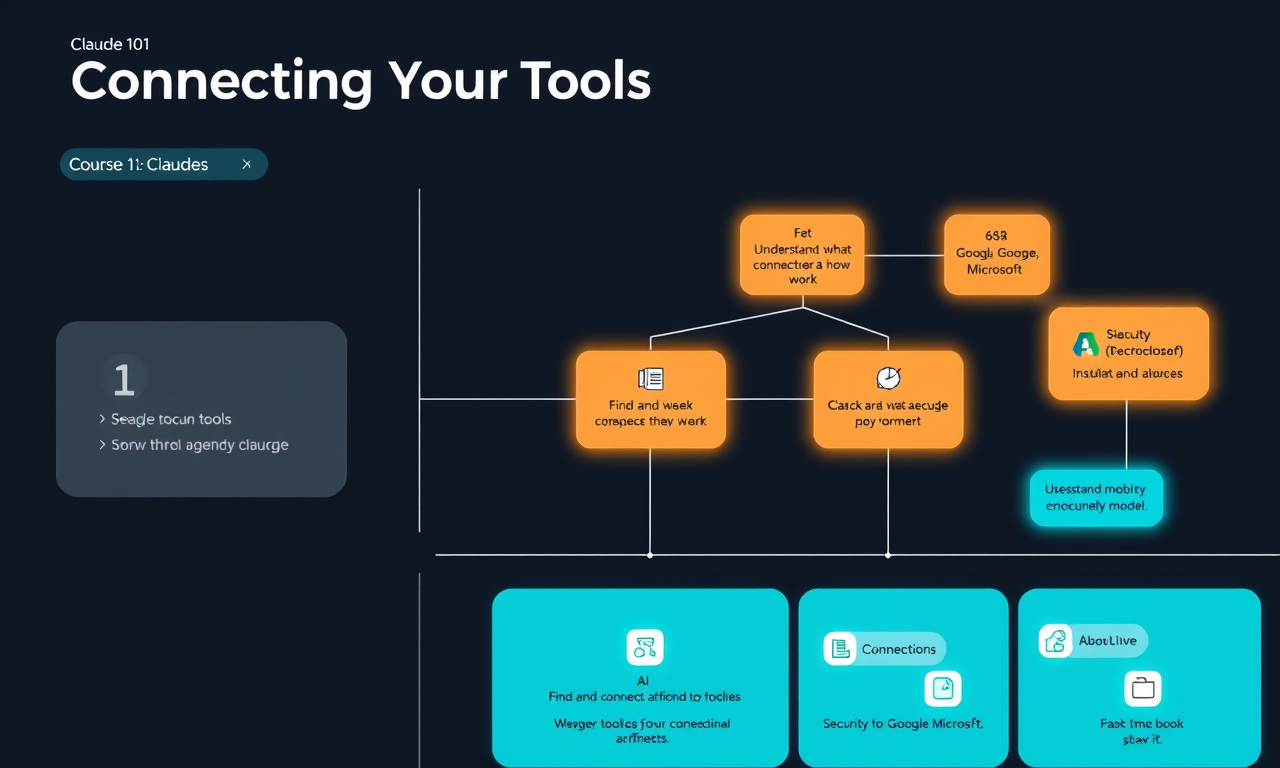
- Understand what connectors are and how they work
- Find and connect the tools you use most (Slack, Google, Microsoft, and more)
- Use connected tools effectively in your conversations
- Understand the security and privacy model
Key takeaways
- Connectors are the way to give Claude access to your professional infrastructure. By enabling Claude to read from and write to your tools, it's possible to move between them more efficiently.
- Connectors allow Claude to take actions across applications — the idea of "Claude as an assistant" becomes "Claude as a workflow intermediary." Think of MCP as an automated bridge.
- You can use Claude with all of these applications in order:
- Google tools such as Docs, Sheets, Slides, Drive, Gmail, and Calendar
- Slack, Notion, and many more
- Please note the connector tool extension may significantly upgrade your organization's administrative privileges within those applications — all of which are within your own control.
Finding and connecting connectors
Connectors unlock a directory of curated connected experiences and enable services. There are connectors for:
- Google tools (Docs, Sheets, Slides, Drive, Gmail, Calendar)
- Microsoft (Word, Excel, PowerPoint, OneDrive)
- Slack
- Notion
- And many more — depending on the platform
To add a connector:
- Go to Settings → Connectors (or find them in the sidebar under "Connectors")
- Click the service you want to connect
- Follow the authentication flow to grant Claude access to that tool
- Once connected, you can refer to files, emails, documents from that service directly in conversation
Setting up a work experience
To configure Claude specifically for work:
- Connect your organization's apps (Google Workspace, Microsoft 365, Slack)
- Add connectors to the Project you use for work
- Give Claude instructions about your organization, team structure, and working preferences
Using connectors in your work
Once your tools are connected, you can prompt Claude naturally:
- "What are my highest-priority emails from this morning?"
- "Draft a reply to the message from [colleague] about the Q3 marketing plan"
- "Find all documents related to the onboarding process"
- "What has been discussed in the #product-feedback channel this week?"
- "What are my upcoming meetings for tomorrow and what should I prepare?"
- "Draft a meeting agenda based on the open items from my last project conversation"
Example multi-step prompt: "Check what was discussed in the last #product channel message and then draft a brief internal update for our stakeholders."
Security and privacy features
Key security principles:
- Claude only accesses data you have permission to access in your connected tools
- The connection uses OAuth — Claude never stores your password
- You can revoke access to any connector at any time from Settings
- Conversations with data from connectors remain private and your connected data is not indexed or stored separately
- Enterprise customers have additional admin controls
Before moving on, consider
- What tools do you already use at work that you'd want Claude to connect with?
- What multi-step workflows might you be able to simplify through connectors?
- Which connector would be most impactful to connect in your first week?