Configuration And Multi File Skills
Introduction to agent skills
Configuration and multi-file skills
What you'll learn
Estimated time: 20 minutes
By the end of this lesson you'll be able to:
- Configure advanced skill metadata fields including allowed-tools and model
- Write effective skill descriptions that reliably trigger on the right requests
- Use allowed-tools to restrict what Claude can do when a skill is active
- Organize complex skills using progressive disclosure and multi-file structures
Configuration and multi-file skills
(4 minutes)
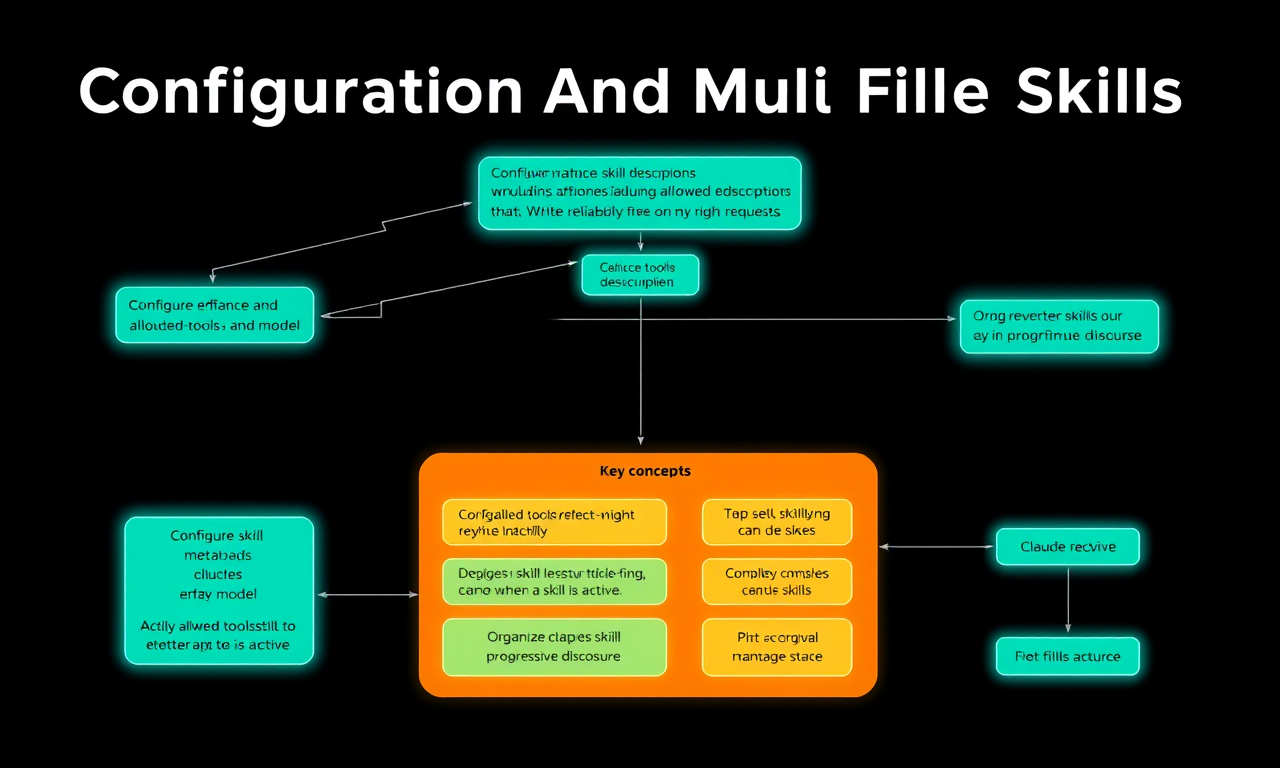
This video covers the advanced techniques that make skills more powerful: the full set of metadata fields, how to write descriptions that trigger reliably, restricting tool access for security-sensitive workflows, and organizing larger skills across multiple files using progressive disclosure. You'll learn how to keep your skills efficient while still supporting complex use cases.
Key takeaways
- name and description are required — allowed-tools and model are optional but powerful additions
- A good description answers two questions: What does the skill do? When should Claude use it?
- allowed-tools restricts which tools Claude can use when the skill is active — useful for read-only or security-sensitive workflows
- Progressive disclosure: keep SKILL.md under 500 lines and link to supporting files (references, scripts, assets) that Claude reads only when needed
- Scripts execute without loading their contents into context — only the output consumes tokens, keeping context efficient
A basic skill works with just a name and description, but there are several advanced techniques that can make your skills much more effective in Claude Code. Let's walk through the key fields, best practices for descriptions, tool restrictions, and how to structure larger skills.
Skill Metadata Fields
The agent skills open standard supports several fields in the SKILL.md frontmatter. Two are required, and the rest are optional:
- name (required) — Identifies your skill. Use lowercase letters, numbers, and hyphens only. Maximum 64 characters. Should match your directory name.
- description (required) — Tells Claude when to use the skill. Maximum 1,024 characters. This is the most important field because Claude uses it for matching.
- allowed-tools (optional) — Restricts which tools Claude can use when the skill is active.
- model (optional) — Specifies which Claude model to use for the skill.
Writing Effective Descriptions
Be explicit with your instructions. If someone told you "your job is to help with docs," you wouldn't know what to do — and Claude thinks the same way.
A good description answers two questions:
- What does the skill do?
- When should Claude use it?
If your skill isn't triggering when you expect it to, try adding more keywords that match how you actually phrase your requests. The description is what Claude uses to decide whether a skill is relevant, so the language matters.
Restricting Tools with allowed-tools
Sometimes you want a skill that can only read files, not modify them. This is useful for security-sensitive workflows, read-only tasks, or any situation where you want guardrails.
In this example, the allowed-tools field is set to Read, Grep, Glob, Bash. When this skill is active, Claude can only use those tools without asking permission — no editing, no writing.
---
name: codebase-onboarding
description: Helps new developers understand the system works.
allowed-tools: Read, Grep, Glob, Bash
model: sonnet
---
If you omit allowed-tools entirely, the skill doesn't restrict anything. Claude uses its normal permission model.
Progressive Disclosure
Skills share Claude's context window with your conversation. When Claude activates a skill, it loads the contents of that SKILL.md into context. But sometimes you need references, examples, or utility scripts that the skill depends on.
Cramming everything into one 2,000-line file has two problems: it takes up a lot of context window space, and it's not fun to maintain.
Progressive disclosure solves this. Keep essential instructions in SKILL.md and put detailed reference material in separate files that Claude reads only when needed.
The open standard suggests organizing your skill directory with:
- scripts/ — Executable code
- references/ — Additional documentation
- assets/ — Images, templates, or other data files
Then in SKILL.md, link to the supporting files with clear instructions about when to load them:
In this example, Claude reads architecture-guide.md only when someone asks about system design. If they're asking where to add a component, it never loads that file. It's like having a table of contents in the context window rather than the entire document.
A good rule of thumb: keep SKILL.md under 500 lines. If you're exceeding that, consider whether the content should be split into separate reference files.
Using Scripts Efficiently
Scripts in your skill directory can run without loading their contents into context. The script executes and only the output consumes tokens. The key instruction to include in your SKILL.md is to tell Claude to run the script, not read it.
This is particularly useful for:
- Environment validation
- Data transformations that need to be consistent
- Operations that are more reliable as tested code than generated code
Lesson reflection
- Think about a skill you'd like to build that involves multiple files. How would you structure the SKILL.md versus supporting reference files?
- Are there workflows in your team where restricting tool access with allowed-tools would add an important safety layer?
What's next
In the next lesson, we'll compare skills to the other ways you can customize Claude Code — CLAUDE.md, subagents, hooks, and MCP servers — so you can choose the right tool for each situation.
Feedback
As you progress through the course, we'd love to hear how you're using skills in your work, plus any feedback you may have. Share your feedback here.