Your first prompt
4. Your First Prompt
Course: Claude Code 101
Notes
Your First Prompt You talk to Claude Code like you would any AI assistant. When entering your prompt, here are some things to consider that can both protect you and make things easier.
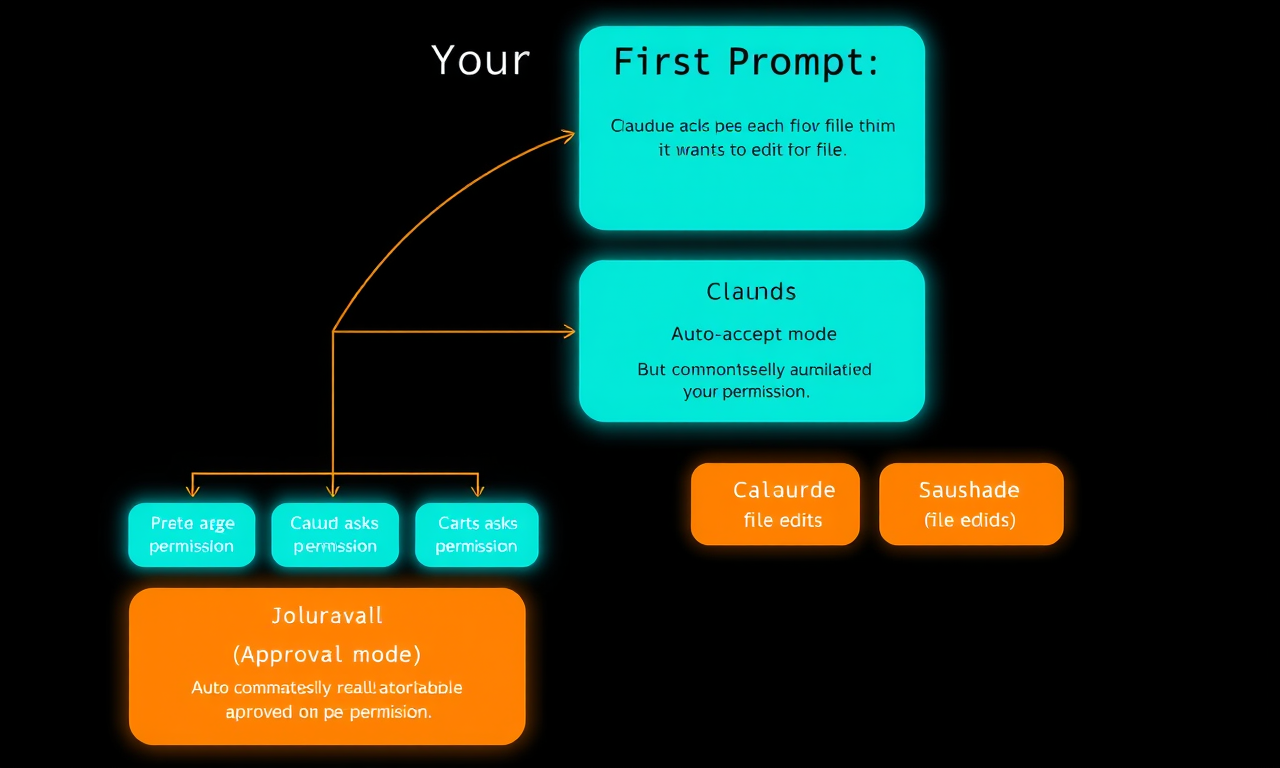
Auto-Accept vs. Approval
You can choose whether Claude auto-accepts every file change it suggests, or whether it asks for your explicit permission each time. Press Shift + Tab to cycle between modes:
- Approval mode — Claude asks permission each time it wants to edit a file
- Auto-accept mode — file edits are automatically approved, but commands still require your permission
There's no right or wrong answer — it's whatever you're comfortable with.
Plan Mode
Within the Shift + Tab menu is Plan Mode. Plan mode takes your prompt and uses read-only tools to analyze your codebase and research your suggested implementation. It will ask clarifying questions along the way, then return a detailed plan it can execute. Plan mode is great for planning complex changes or doing a safe code review.
Example: Add a Dark Mode Toggle
- Open the root directory of your project and run
claude - Press
Shift + Taba couple of times to enter Plan Mode - Write your prompt (e.g. "My app needs a dark mode implemented across the UI")
- Let Claude plan it out — if the plan looks good, accept it
- Claude will ask for your approval at each step; at the end you can see exactly what Claude did and how it reached its conclusions
Recap: When using Claude Code, try to be as descriptive as possible with your prompt. If you want to stay in the loop at every step, use Plan Mode to let Claude dig into the details before touching any code.