1 · 5/14
Introduction to projects
Diagram
5. Introduction to Projects
Course: Claude 101 Estimated time: 10 minutes
Learning objectives
By the end of this lesson, you will be able to:
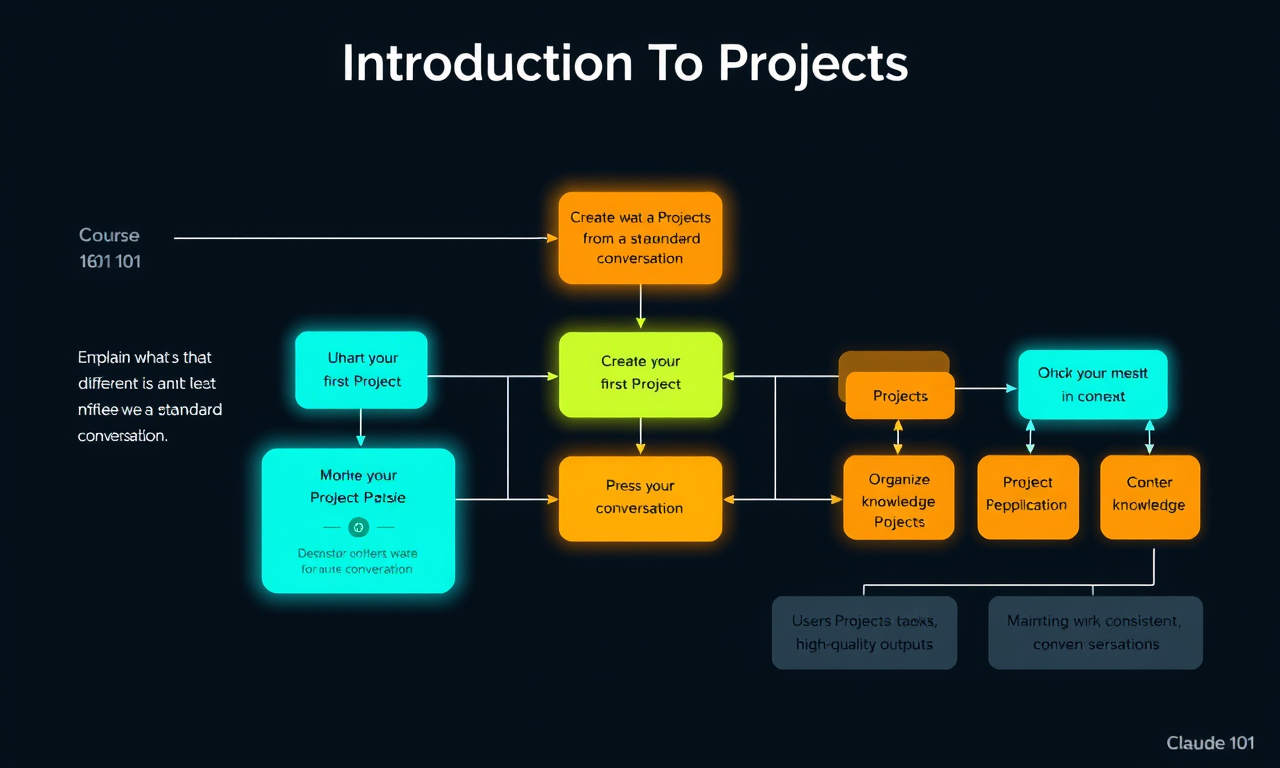
- Explain what a Project is and how it differs from a standard conversation
- Create your first Project and add context to it
- Use Projects for ongoing work to maintain consistent, high-quality outputs
- Organize knowledge, tasks, and conversations within a Project
What is a Project?
A Project is a dedicated space in Claude for ongoing work — it stores context (instructions, files, notes, and conversation history) so you don't have to re-explain your situation every time you start a new conversation.
Think of a Project as a dedicated project for a specific area of your life or work where:
- Your knowledge base is already loaded
- Claude remembers your preferences and instructions
- Your past conversations are available as context
Creating your first Project
Steps to create a Project:
- Go to Claude.ai and click "New Project" in the left sidebar (or from the Projects page)
- Give it a name (e.g., "Marketing Campaign Q3" or "Weekly Reporting")
- Add a Project instruction — this is the most important step. Tell Claude:
- Who you are and your role
- What this project is about
- How you want Claude to respond (tone, format, style)
- Any key constraints or rules
- Upload relevant files — documents, spreadsheets, reference materials Claude should know about
- Start a conversation within the Project
Working with Projects — tips
Working with knowledge in Projects:
- You can add files to a Project's knowledge base — PDFs, text files, code files, and more
- When your project knowledge base approaches context limits, Claude will indicate this automatically; older content may be de-prioritized
Working with project members:
- On Team and Enterprise plans, you can share Projects with colleagues
- All members can add conversations, files, and instructions
Making notes to steer responses:
- Write project instructions in the style of an onboarding doc: "When I ask for a draft email, always write in a professional but warm tone and keep it under 200 words"
- Periodically review and refine your instructions as you learn what works
Lesson reflection
Before moving on, consider:
- What is one ongoing area of your work that would benefit from a dedicated Project?
- What instructions would you give Claude to make it most useful for that Project?
- What files or documents would be valuable to include in your Project's knowledge base?